SuperScreen: Turning an Android Phone into a Touch Second Monitor for Windows
The Idea
The goal of SuperScreen was simple to state and interesting to build:
Turn any Android phone into a second monitor for Windows that mirrors an extended desktop, responds to touch, and runs smoothly over either Wi‑Fi or a USB cable - with a clean control app and a one-click install.
Commercial tools that do this exist, but I wanted to understand the whole stack end‑to‑end: how Windows creates a "fake" monitor, how you capture and compress it in real time, how you get it onto a phone with minimal latency, and how touches travel back to control the PC. This case study walks through the finished architecture and the engineering decisions behind each layer.
What It Does
Adds a real extended monitor to Windows via a custom virtual display driver - Windows treats it like any other screen. You can drag windows onto it and set its resolution.
Streams that monitor to the phone as H.264 video at 60 fps.
Sends touches back to the PC as native pointer input, so tapping and dragging on the phone controls Windows.
Two transports: a direct TCP socket over Wi‑Fi or USB tethering (lowest latency), or a USB/ADB path.
A native control app on the PC: pick the monitor, choose a resolution, start/stop, and manage the driver - all from a small window.
Runs in the background: the streaming engine is a separate worker process, so you can close the control window and the second screen keeps running. It can also start automatically at login.
One‑click packaging: an installer sets everything up, and an open‑source release lets anyone download, build, or install it themselves.
Architecture
At the highest level, SuperScreen has four cooperating pieces: a virtual display driver, a host engine that captures and encodes, a transport, and the Android client.

Each layer is independent and swappable - for example, the transport can be a direct socket or the ADB tunnel without the rest of the system knowing the difference.
Layer 1 - The Virtual Display Driver
The foundation of the whole project is making Windows believe a monitor exists that has no physical panel behind it. Windows provides exactly the right mechanism for this: the Indirect Display Driver (IddCx) model, a modern, user‑mode driver framework (UMDF) purpose‑built for software‑defined displays.
When the driver loads, it:
Initializes an IddCx adapter and reports its capabilities to Windows.
Creates a monitor and hands Windows a small EDID (the standard block real monitors use to describe themselves), so the display shows up with a friendly name and a preferred resolution.
Advertises the display modes it supports (e.g. 1920×1080 @ 60 Hz).
Receives a swap‑chain from Windows - a stream of GPU surfaces containing the rendered desktop - and publishes each frame to the host engine through fast shared memory.
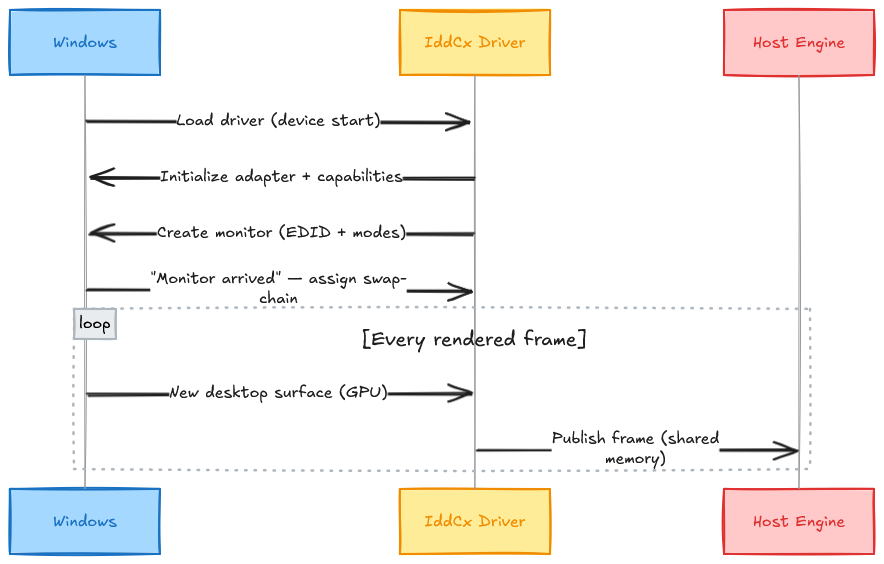
Because IddCx runs entirely in user mode, the driver can use standard DirectX/DXGI APIs and never risks the system stability problems of kernel‑mode display drivers. The result: a genuine, extendable monitor that behaves exactly like a physical one in Settings -> Display.
Layer 2 - Capture & Encoding
Once the virtual monitor exists, Windows renders the extended desktop onto it. The host engine's job is to turn that into a compressed video stream fast enough to feel live.
The pipeline uses two Windows technologies:
DXGI Desktop Duplication to grab each frame of the virtual monitor directly from the GPU.
Media Foundation to encode those frames as H.264, the codec every phone can decode in hardware.

A few engineering details that make it smooth:
Even pacing. Rather than encoding a frame only when the screen happens to change (which produces bursty, jittery output), the engine samples on a steady cadence and sends evenly‑spaced frames. Smooth motion on a display is as much about consistent frame delivery as raw frame rate.
Multi‑threaded color conversion. Converting a full‑HD frame to the encoder's input format is the heaviest per‑frame CPU cost, so it's split across CPU cores.
Low‑latency encoder configuration. The encoder runs in real‑time mode with a short reference window and no B‑frames, keeping per‑frame latency low.
Keyframe on demand. The stream always begins with a keyframe so the phone's decoder can start instantly, and refreshes periodically so a reconnecting client re‑syncs immediately.
Selectable resolution & bitrate. Lower settings for maximum smoothness on a busy network; higher for sharpness. This is exposed directly in the control app.
Layer 3 - Transport
SuperScreen supports two ways to move data between PC and phone, and the app lets you choose:
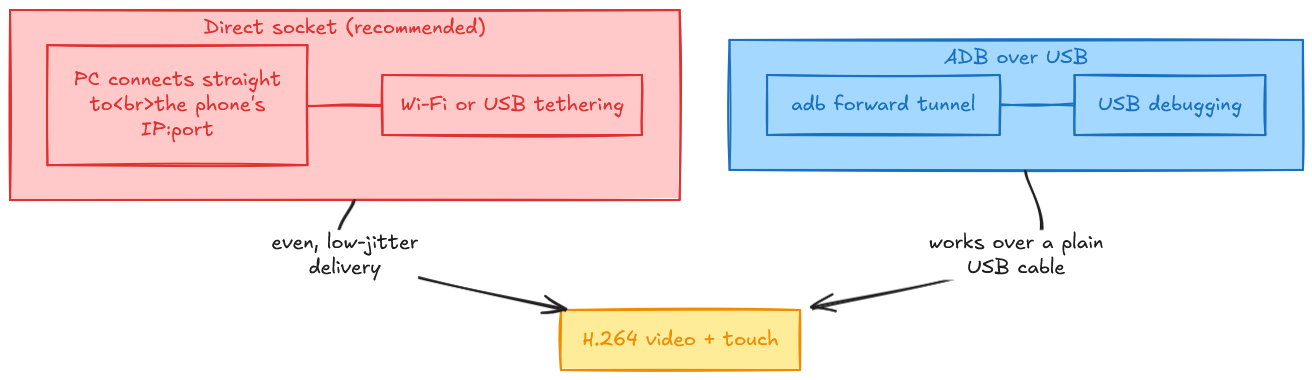
The direct TCP socket is the star: the PC connects straight to the phone over the local network or a USB‑tether link, giving even, low‑jitter delivery. The ADB path is a nice fallback that works over any USB cable with debugging enabled.
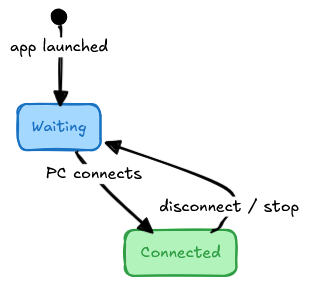
The phone listens on both at once and simply shows its IP address on screen while it waits, so connecting is as easy as reading a number and picking a mode in the app. The connection is resilient: transient hiccups drop a frame rather than the whole session, and the phone returns to its "waiting" screen whenever a session ends.
Layer 4 - The Android Client
The phone app is intentionally lean: decode video, render it fullscreen, and send touches.
Hardware H.264 decode straight to a rendering surface, so decode time is effectively free (a millisecond or two per frame).
Latest‑frame rendering. If several frames arrive in a burst, the app renders only the newest and discards the stale ones - this keeps latency low and constant instead of letting a backlog build up.
Immersive fullscreen. The status and navigation bars are hidden so the mirror uses the entire panel, and it follows the phone's rotation.
A clean "waiting" screen that displays the device's IP and the two ways to connect, and reappears automatically whenever the connection drops.
Touch capture with multi‑pointer support, scaled to the stream resolution and sent back to the PC.
To keep input responsive, outbound touch events are handed to a dedicated sender thread rather than being written on the UI thread - so a busy network never makes the interface stutter.
Touch: From Fingertip to Cursor
Touches on the phone become real input on Windows. Each touch is captured, scaled from the phone's screen to the virtual monitor's coordinate space, sent over the transport, and injected on the PC as absolute pointer input mapped onto the virtual display.
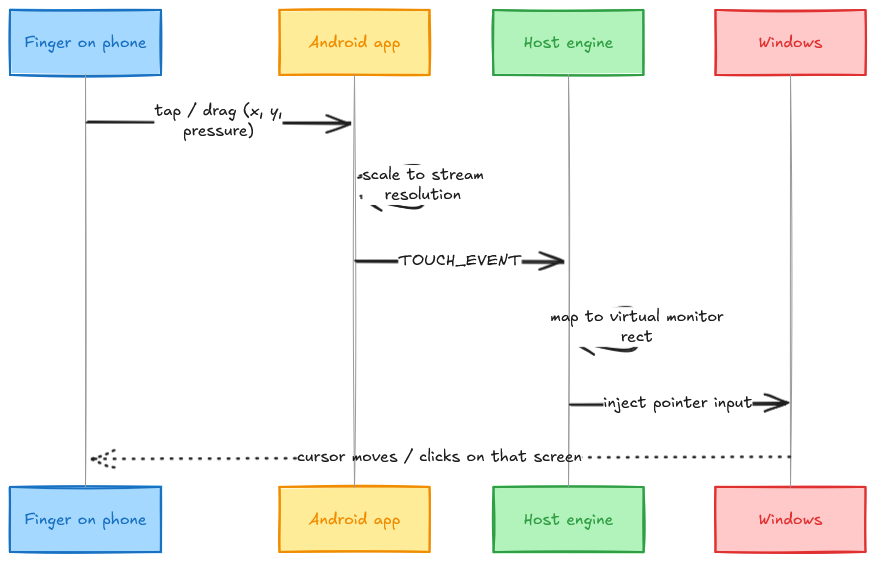
Because the input is mapped to the virtual monitor's rectangle in the virtual desktop, taps land exactly where you touch - you can open the Start menu, click buttons, and drag windows on the phone screen.
The Control App
A key design decision was separating the user interface from the streaming engine. The GUI is a small native Win32 control panel, the actual capture/encode/stream work runs in a separate background worker process.
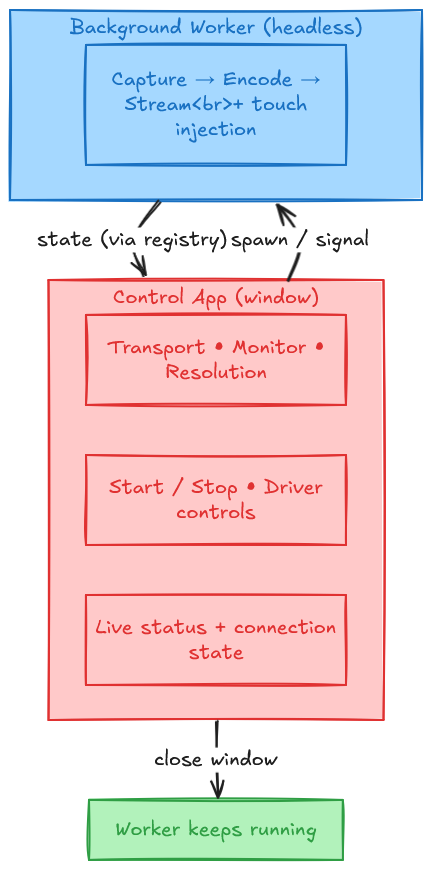
This yields exactly the behavior you want from a utility like this:
Close the window, keep streaming. The control app is just a remote control - closing it doesn't interrupt your second screen.
Reopen anytime to see live status ("Connected - streaming") and stop or reconfigure.
Settings persist across restarts, so it always comes back the way you left it.
Start at login (optional). The worker can launch hidden at login so the second screen simply appears when you connect the phone - no manual steps.
Driver management built in. Install, enable, disable, or remove the virtual monitor right from the app; it requests elevation only for those specific actions.
The interface itself is a modern dark control panel with a monitor dropdown (populated with the real display names it finds), a resolution selector from low to high, a bitrate field, accent Start/Stop buttons, and a colored status indicator.
Packaging & Distribution
A project like this is only as good as how easily someone can actually run it. SuperScreen ships two ways:
The phone app is published as a downloadable APK - scan a QR code from the releases page and install, no Android Studio required.
The PC side comes as a package with a one‑click setup: it installs the virtual display driver, places the control app, and creates the virtual monitor. Uninstalling fully reverses everything and restores the previous display layout.
From source, the repository includes everything: the driver project, the host build scripts, the Android Gradle project, an installer script, a continuous‑integration workflow, and detailed build instructions in the README.
Windows requires display drivers to be properly signed. For personal use the project signs the driver locally, for wide public distribution, the standard route is Microsoft's driver‑attestation program - the same path every reputable virtual‑display driver follows. (This case study intentionally keeps signing at a high level and includes no machine‑specific security material.)
Performance
The finished system runs at a steady 60 frames per second at 1080p over the direct socket transport, with hardware decode on the phone measured at ~1–2 ms per frame. The felt latency is low and, importantly, stable - thanks to even frame pacing on the sending side and latest‑frame rendering on the receiving side, the experience doesn't drift or accumulate lag over time. Lowering the resolution or bitrate in the control app trades sharpness for even more headroom on busy networks.
Aspect | Result |
|---|---|
Frame rate | Steady 60 fps (1080p) |
Phone decode time | ~1–2 ms/frame (hardware) |
Transport | Direct TCP (Wi‑Fi / USB tether) or ADB |
Input | Multi‑touch -> native pointer, mapped to the virtual monitor |
Resolution | Selectable, low -> high |
Tech Stack
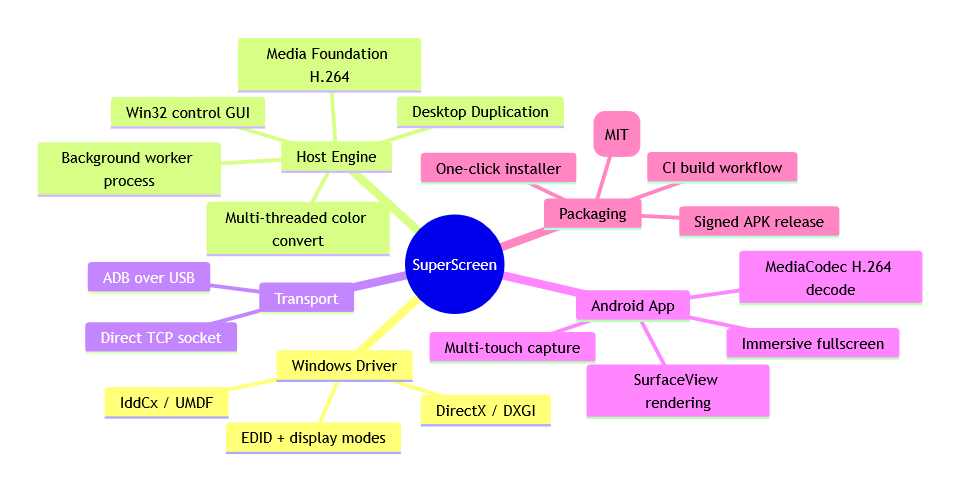
C++ for the driver and host (Win32, DirectX/DXGI, Media Foundation).
Kotlin for the Android client (MediaCodec, Camera2‑free, SurfaceView).
Inno Setup for the Windows installer.
GitHub Actions for CI.
What I Took Away
Building SuperScreen was a tour through several corners of Windows and Android that most application developers never touch:
Virtual devices are a first‑class concept. IddCx makes a "monitor that isn't there" a supported, stable, user‑mode thing - no fragile hacks required.
Smoothness is about consistency, not just speed. Even, predictable frame delivery beat raw throughput every time; pacing and latest‑frame rendering mattered more than shaving milliseconds off encode.
Transport choice dominates perceived quality. Moving from a relayed tunnel to a direct socket was the single biggest jump.
Architecture makes or breaks usability. Splitting the UI from a background worker turned a script you babysit into a tool that just runs.
Shipping is a feature. A one‑click installer, a QR‑code APK, and a clean README are what turn a personal project into something other people can actually use.
Try It
SuperScreen is open source under the MIT license. You can download the app and PC package from the releases page, or clone the repo and build it yourself:
=> github.com/ahmedhassantariq/SuperScreen
If you've got a spare Android phone, it might just become your next monitor.
Built with C++, Kotlin, DirectX, Media Foundation, and a lot of curiosity about how Windows really draws to a screen.